

FAQ - MiKEP Online Loan Request
This page explains how to apply for a loan online in MiKEP.
Step 1:
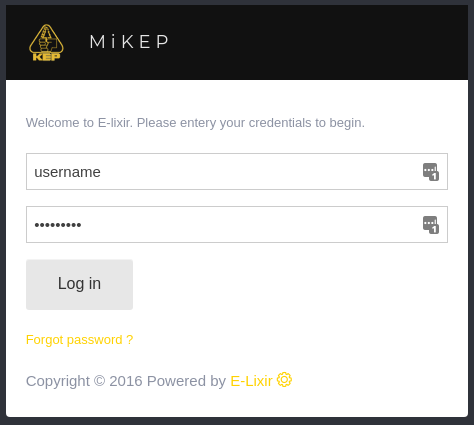
- Open Your Browser: Go to mi.kep.cw
- Log In: use your credentials to log in.
Step 2:
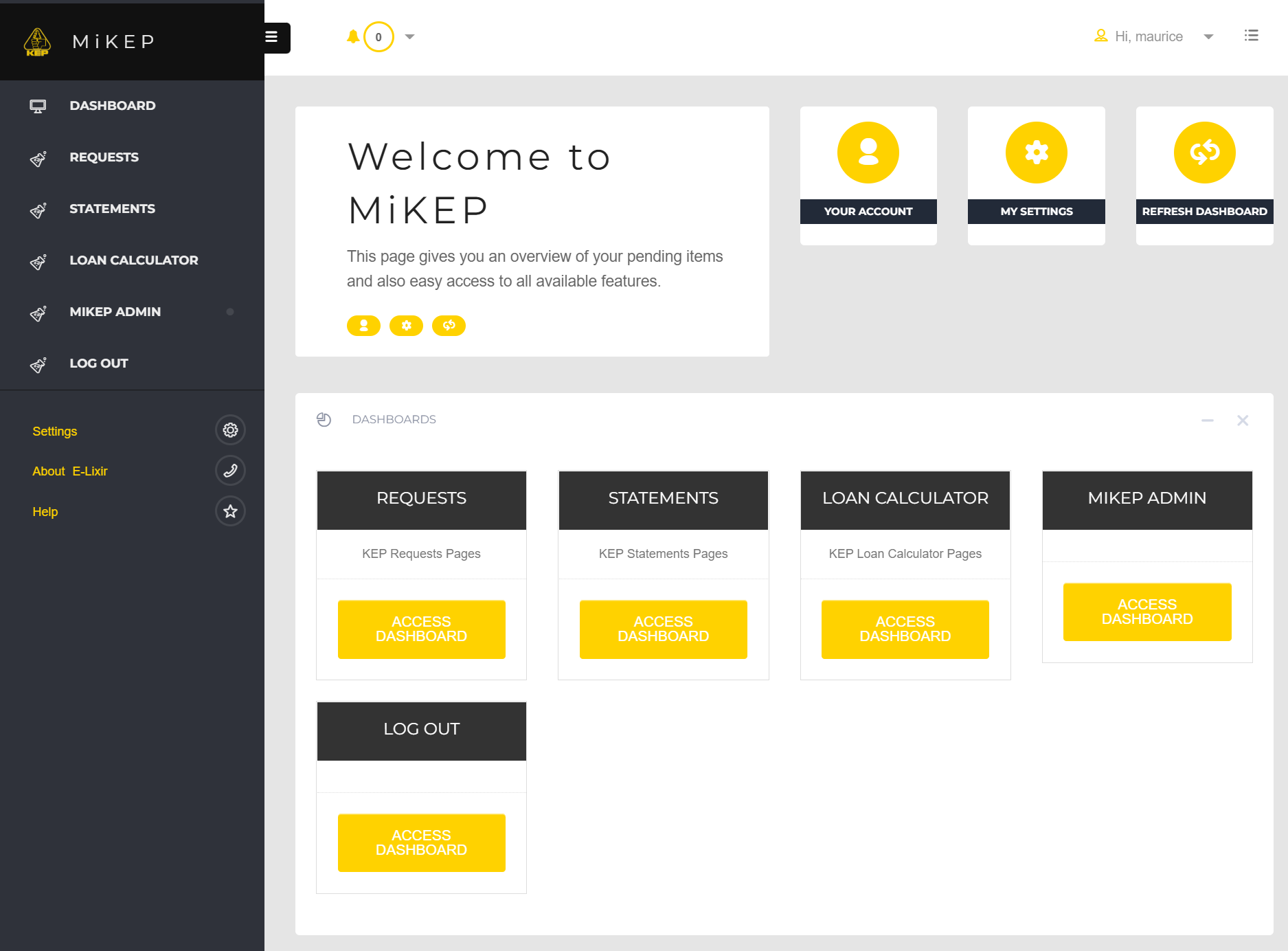
- Click on: Requests in the left menu bar.
Step 3:
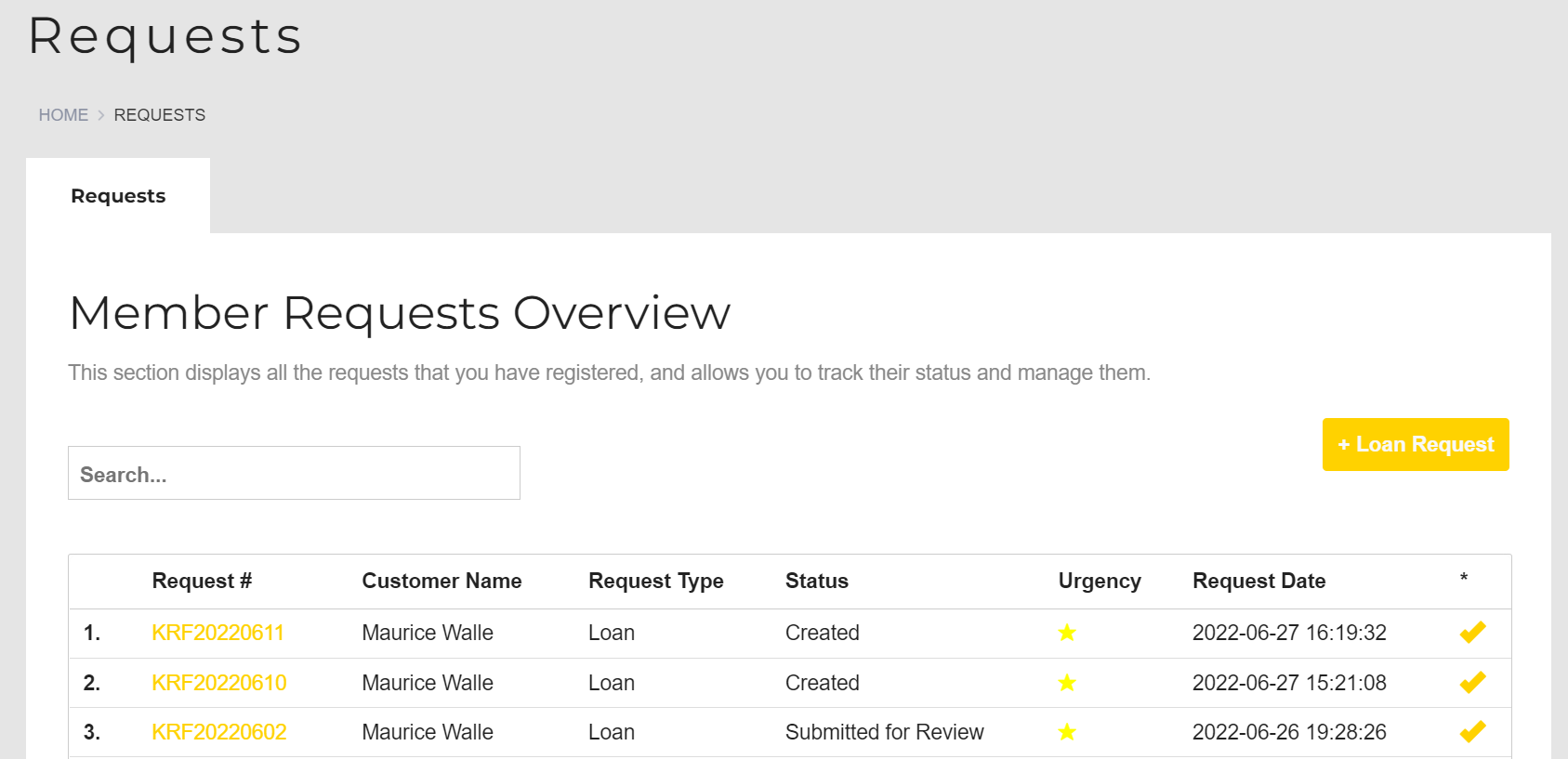
- Click on: The "+ Loan Request" button.
Step 4:
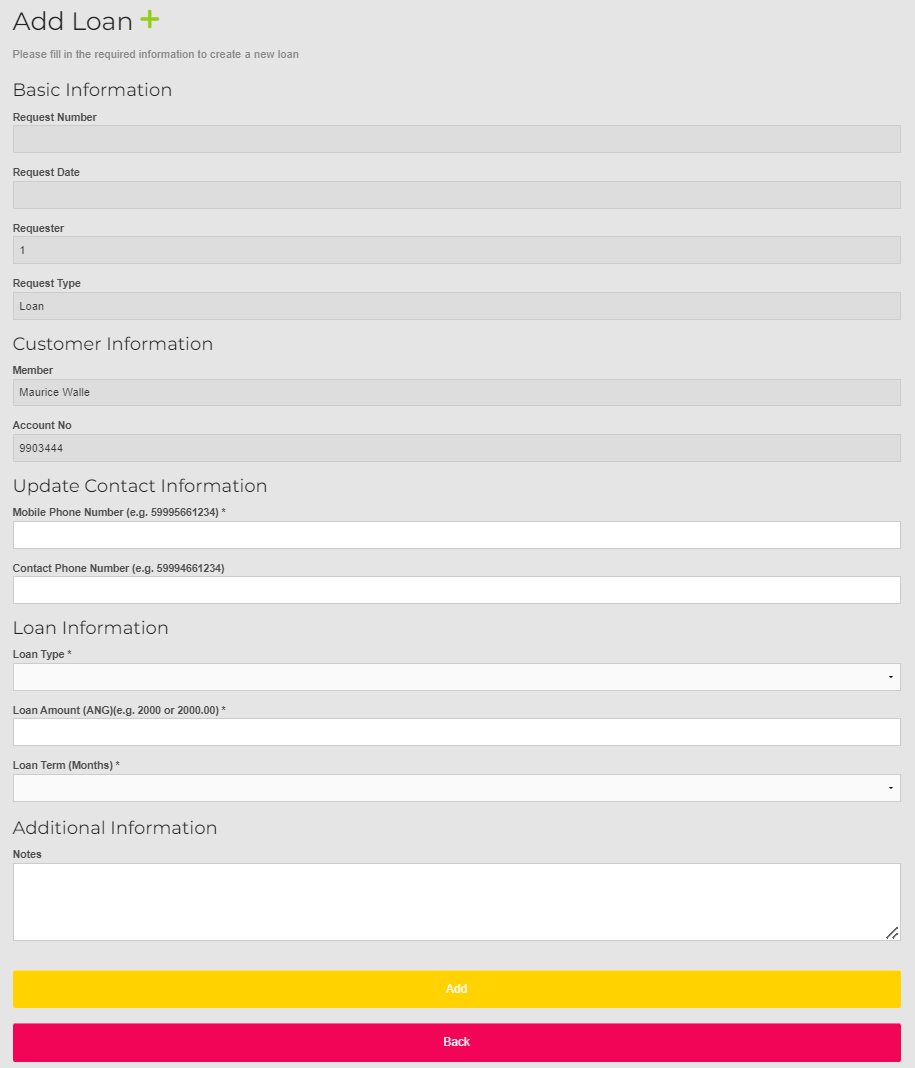
- Fill in all the required fields then press the "Add" button.
Step 5:
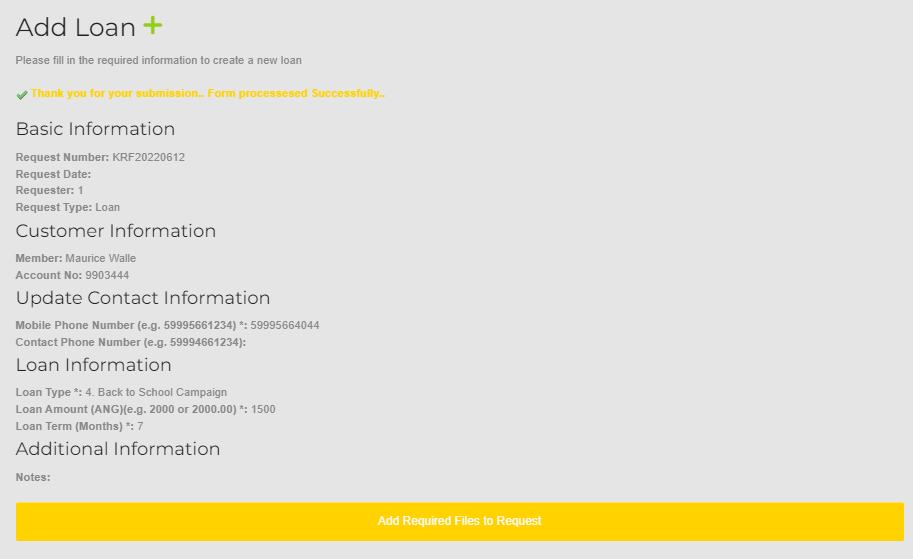
- Click on: The "Add Required Files to Request" button. You will now need to add all the required documents.
Step 6:
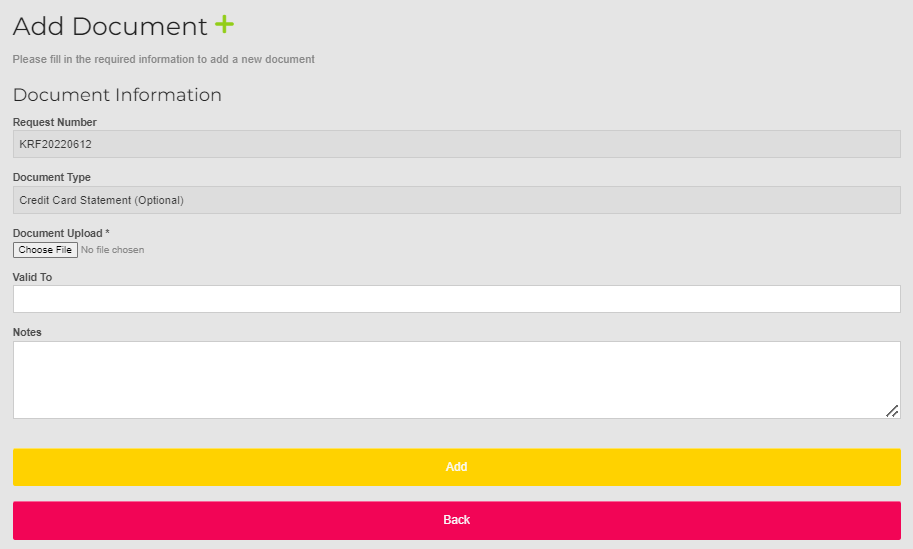
- Click on: "Choose File" to upload the document stated in the Document Type Field then press the "Add Button".
Step 7:
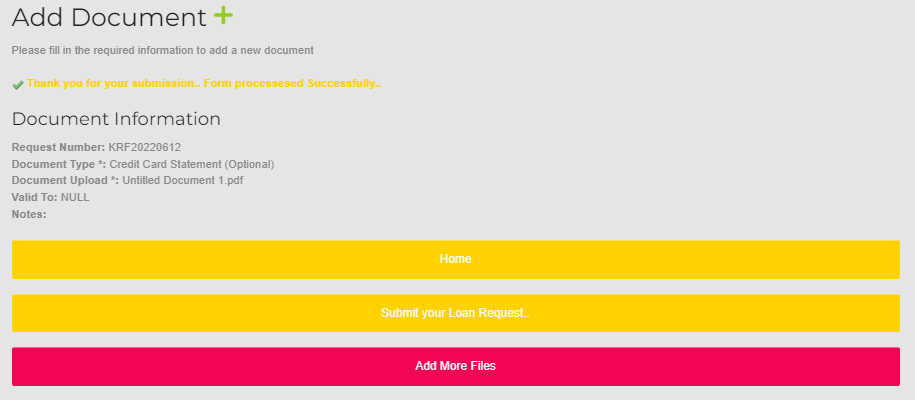
- Once you have completed uploading all the required files you will need to Click on: The "Submit your Loan request" button. Your loan request will then be sent to the KEP Team for Processing.
Tracking 1:
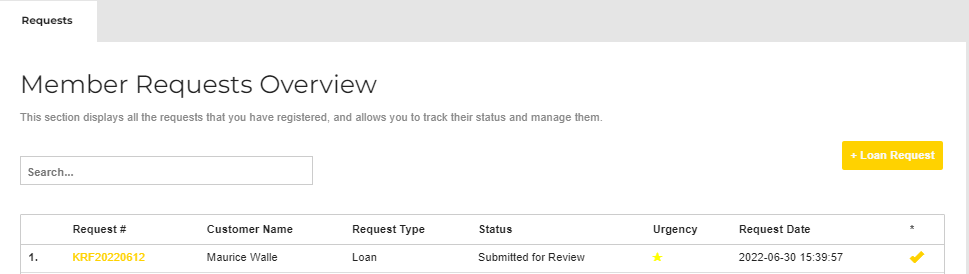
- On the overview dashboard you can see the status of your request at all times.
Loan Requests Wizard:
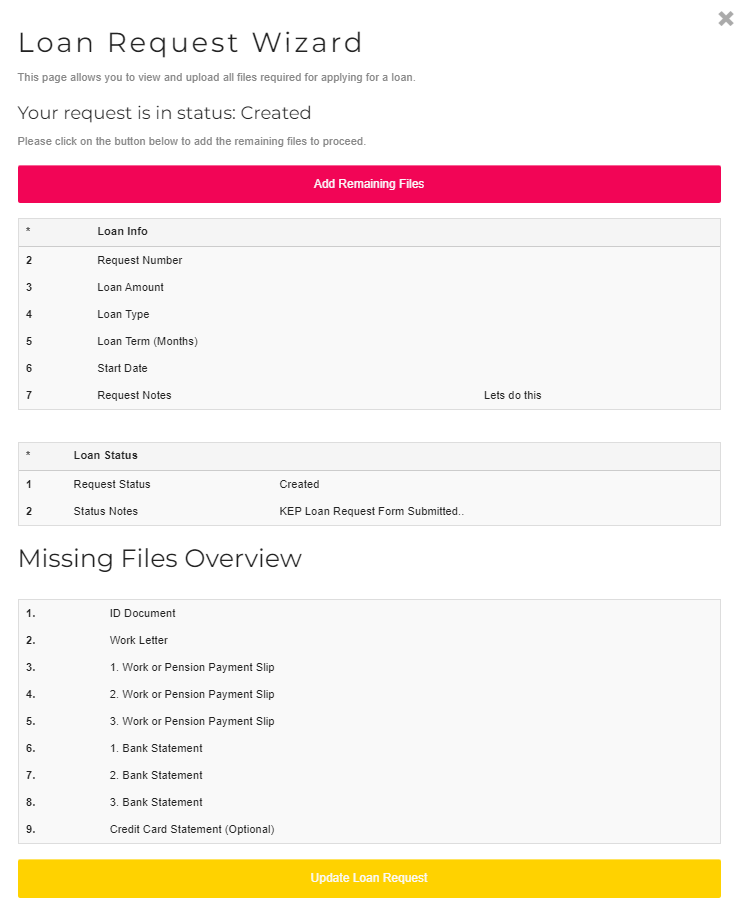
If for any reason you cannot complete your request and upload your documents on the same session the Loan Requests wizard will be available to help you pick up where you left off.
Please Click on: the Check mark behind your request to view where you left off or check the status of your request.
Back to FAQ's
Undefined